iPhone / iPad
- Apri app.vim-data.org con Safari.
- Tocca il pulsante di condivisione.
- Scegli Aggiungi alla schermata Home.
- Conferma con Aggiungi.
 VIM
VIM
Apri l'app dal telefono, installala nella schermata Home e compila i moduli anche quando la connessione non è stabile. Gli invii vengono messi in coda e sincronizzati appena possibile.

Se sei su mobile, tocca il link. Da computer, inquadra il QR code con la fotocamera del telefono.
Inserisci username e password forniti dal progetto VIM.
Apri Compila modulo, scegli la lingua e completa i campi obbligatori.
Registra audio o video, scatta foto oppure carica file già presenti sul dispositivo.
Tocca Completato e scegli invio automatico o manuale. Se sei offline, il modulo resta in coda.
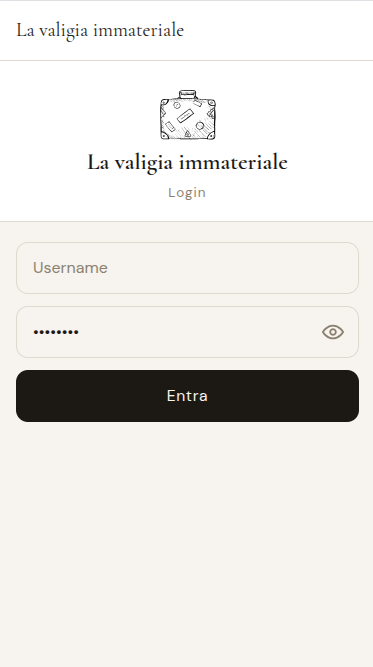
Accedi con le credenziali assegnate.
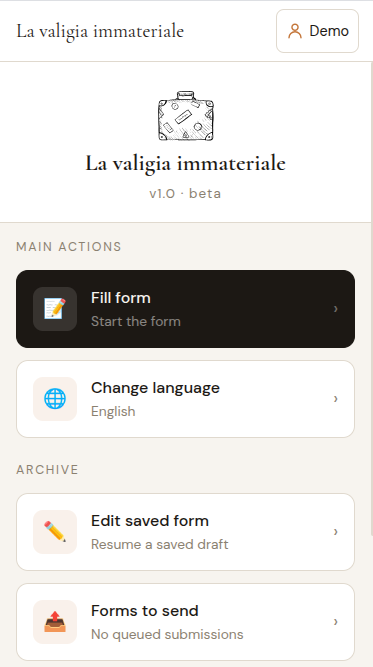
La Home contiene azioni principali e archivio.
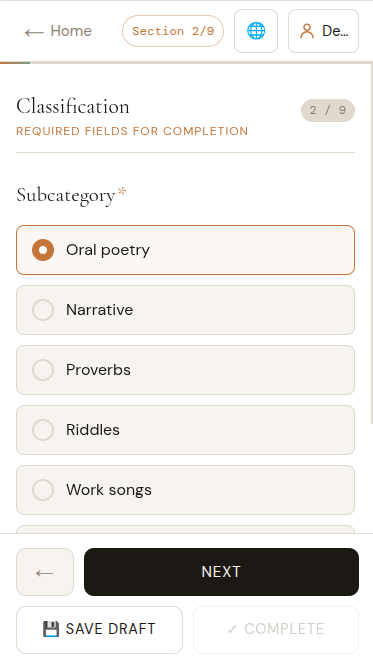
Puoi salvare una bozza e riprendere più tardi.
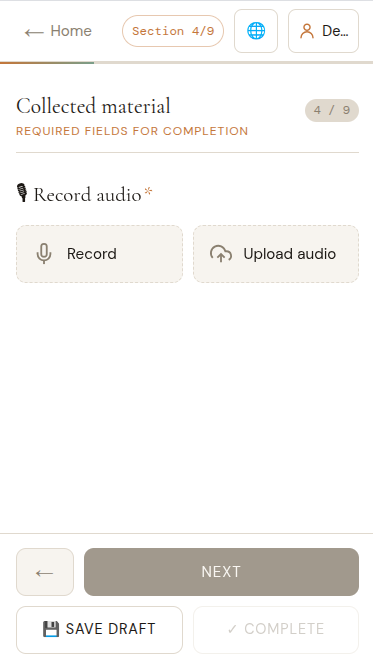
Registra audio o video direttamente dal browser quando il modulo lo richiede.
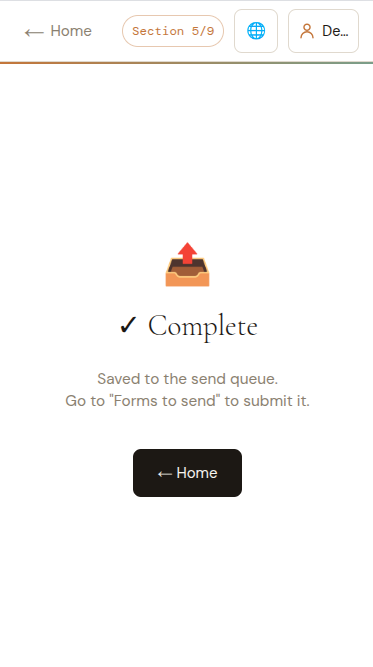
Completa il modulo quando tutte le informazioni obbligatorie sono state inserite.
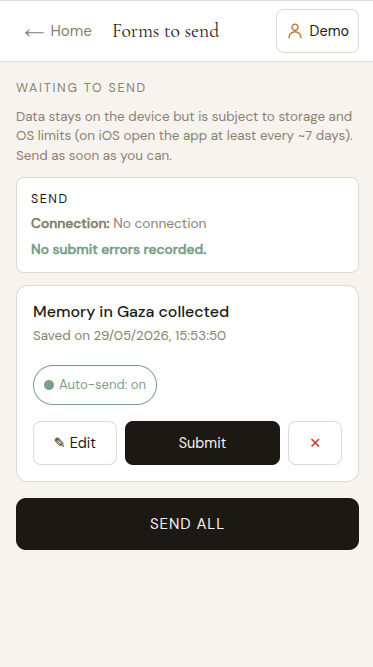
Invia i moduli in attesa oppure lasciali in coda finché la connessione è disponibile.